
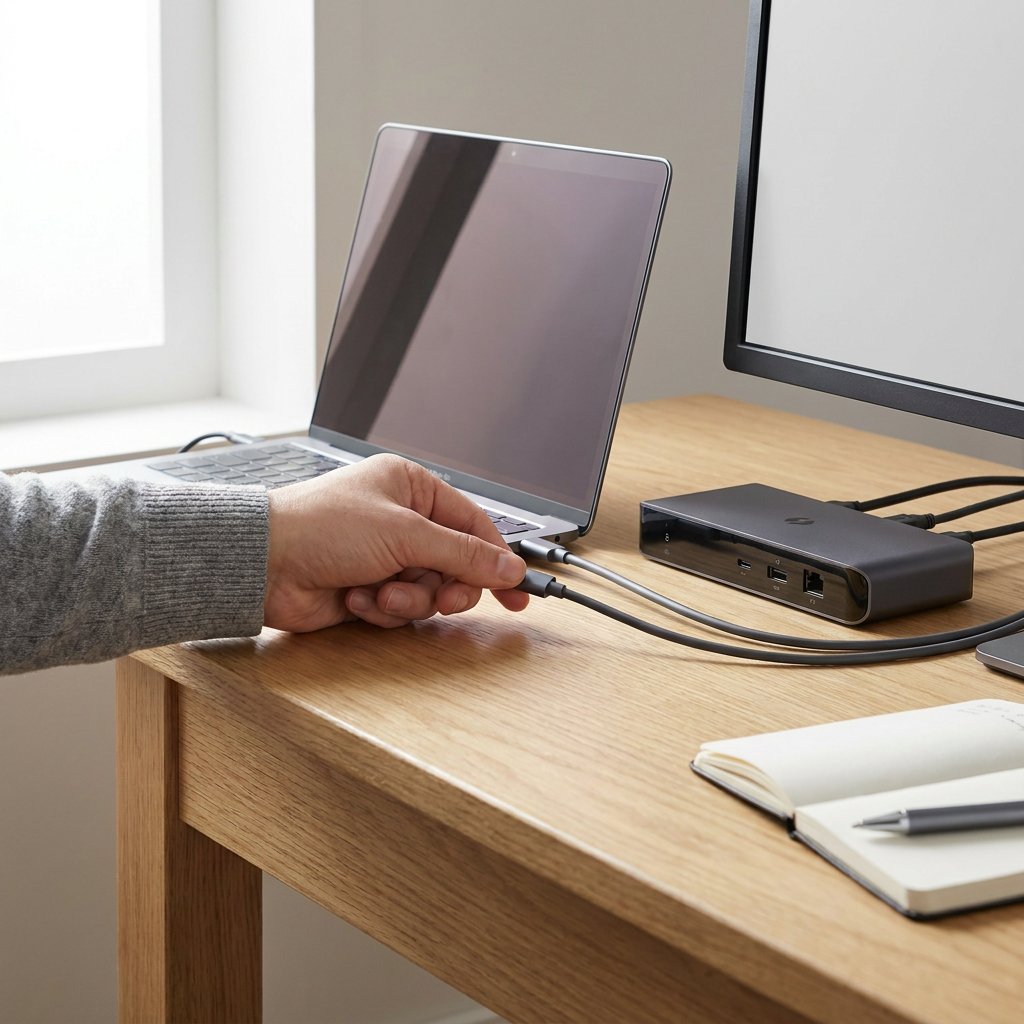
Short answer: USB-C is the shape of the connector and port, while Thunderbolt is a technology that can use that same USB-C form. That is precisely why confusion arises: two ports can look identical, even though one is mainly intended for charging and basic data transfer while the other can also handle fast storage, multiple displays or an advanced dock.
That difference only really becomes obvious in practice. Speed, video output and charging power depend not only on the port, but also on the device and the cable. Below, you can see when standard USB-C is more than sufficient, when Thunderbolt offers clear benefits, and how you can quickly check this yourself before choosing a cable, charger or accessory.
USB-C determines the shape, Thunderbolt determines the performance
When it comes to the difference between USB-C and Thunderbolt, this is the most important starting point: USB-C only says something about the physical connection. It is the oval connector you see on laptops, smartphones, tablets, docks and accessories. From that shape alone, you cannot tell which functions are available. A USB-C port may be limited to USB‑C charging and data, but it may also support video, higher speeds or more power.
Thunderbolt, by contrast, does say something about what that port can technically do. Modern Thunderbolt versions use the same USB-C connector, but add a more clearly defined set of capabilities for data, displays and peripherals. That is why many users confuse USB-C and Thunderbolt: the outside looks the same, while the capabilities behind that port can differ greatly.
At a glance: USB-C compared with Thunderbolt 3, 4 and 5
The connector does not tell the whole story. The comparison below shows why.
| Component | USB-C | Thunderbolt 3 | Thunderbolt 4 | Thunderbolt 5 |
|---|---|---|---|---|
| What it is | Physical connector; it may carry USB 2.0, USB 3.x, USB4, charging and sometimes video. | Thunderbolt technology via USB-C. | Thunderbolt via USB-C with tighter minimum requirements. | Latest Thunderbolt generation via USB-C for more demanding workflows. |
| Maximum bandwidth | No fixed value; depends on the USB standard, from 480 Mb/s to 40 Gb/s and higher in some newer USB4 implementations. | Up to 40 Gb/s. | Up to 40 Gb/s. | 80 Gb/s standard, up to 120 Gb/s Bandwidth Boost for display-intensive scenarios. |
| Minimum requirements | The shape alone guarantees nothing about speed, video or power. | Less tightly specified; check the exact support for each device. | Tighter requirements, including broad dock and display support and at least 32 Gb/s PCIe for storage. | An even higher baseline for demanding applications, with more display bandwidth and 64 Gb/s PCIe. |
| Displays | Only if DisplayPort Alt Mode, USB4 or similar video support is present. | Video is possible, but the display configuration varies by host and device. | At least two 4K displays or one 8K display. | More headroom for multiple high-resolution displays; the exact combination depends on the system and GPU. |
| Fast storage and demanding accessories | Depends heavily on the port and cable; sometimes excellent, sometimes limited. | Suitable for fast external SSDs, docks and other demanding peripherals. | More predictable for fast storage and professional docks. | Designed for very fast storage and intensive data traffic. |
| Daisy chaining | Not guaranteed as standard. | Yes, up to six Thunderbolt devices in a chain. | Yes, up to six Thunderbolt devices in a chain. | Yes, up to six Thunderbolt devices in a chain. |
| Power delivery | Can charge via USB Power Delivery, but the actual wattage depends on the device, charger and cable. | Can combine data, video and power via a single cable; charging power still depends on Power Delivery support. | Can combine data, video and power via a single cable; charging power still depends on Power Delivery support. | Can combine data, video and power via a single cable; charging power still depends on Power Delivery support. |
Compatibility without surprises
The basic rule is simple: a USB-C device or USB-C cable will usually fit into a Thunderbolt port, because the connector is the same. After that, you only get the functions that the connected device and the cable being used actually support. So a basic USB-C cable does not suddenly become a Thunderbolt cable just because you plug it into a Thunderbolt port.
Going the other way requires more attention. A Thunderbolt dock, monitor or fast SSD does not automatically work fully on a regular USB-C port. That is because the Thunderbolt protocol, sufficient bandwidth or the required video functions may be missing. So always think about the weakest link in the chain: device, port, cable and accessory. Adapters and hubs can make older or different connections usable, but they do not add missing Thunderbolt or video capabilities.
What this difference means for charging, displays, storage and accessories
When choosing a cable, charger, dock or other accessory, the difference mainly comes down to your use case:
- Charging: USB-C makes charging possible, but the actual charging power varies by device, charger and cable. So a USB-C connector alone does not automatically mean high wattage; for example, see Charging your phone with a laptop charger: is it safe?—that compatibility is often decisive. If you also want to pick the right cable and understand power limits, check USB‑C PD cable: wattage and compatibility. Thunderbolt is mainly useful here when you want to combine power, data and other signals over a single connection.
- Displays: for video, the USB-C shape on its own is not enough. You need support for DisplayPort Alt Mode or Thunderbolt. This becomes even more important as soon as you want to use higher resolutions, higher refresh rates or multiple displays at the same time.
- External storage and creative workflows: if you work with large photo, audio or video files, Thunderbolt can offer major advantages. Fast external SSDs, professional docks and intensive data traffic benefit from the higher and more clearly defined performance.
- Everyday accessories: for cables, chargers, audio accessories and many everyday applications, good USB-C is often more than sufficient. Thunderbolt mainly becomes relevant in demanding setups with fast storage, advanced docks or multiple displays. If you use Android Auto, our guide Which USB‑C cable for Android Auto? What should you look for? shows why data speed and cable quality matter. Switching from Lightning to USB‑C on iPhone? Read USB‑C or Lightning: which port does your iPhone need?.
How to check in minutes what your port and cable can really do
A quick check helps you avoid almost all surprises:
- Check the product specifications or manual and look for terms such as USB version, Thunderbolt version, DisplayPort Alt Mode and Power Delivery.
- If in doubt, check the exact model number, the manufacturer's page or the system information; that is more reliable than looking at the port shape alone.
- Check the cable separately as well. A USB-C connector is no guarantee of video, high charging power or Thunderbolt speed.
- Before buying or connecting, always verify three points: the required data speed, the necessary video output and the required charging power.
Frequently asked questions about USB-C and Thunderbolt
Below you will find short, practical answers to the questions that come up most often.
Can you connect USB-C to Thunderbolt 4?
Yes. A Thunderbolt 4 port uses the USB-C shape, so a USB-C connector fits physically without any problem. After that, it is not the shape but the technology that determines what you can actually use. If you connect a standard USB-C cable or USB-C accessory, the connection works at the level that the device and cable support: for example charging, basic data transfer or video if that function is present. So you do not automatically get full Thunderbolt 4 performance. The reverse is also true: a Thunderbolt accessory on a regular USB-C port may work in a limited way, lack functions or not work at all if the required protocol, bandwidth or video support is missing.
How do you recognise a Thunderbolt port?
Not by the shape alone, because a Thunderbolt port looks the same as USB-C. Manufacturers often place a lightning-bolt symbol next to the port or mention Thunderbolt explicitly in the specifications. If you only see a USB-C port, you still cannot be sure what speed, video functions or dock support are available. So always check the exact model and the technical specifications of your device.
What is a Thunderbolt connection?
A Thunderbolt connection is a high-speed connectivity standard that can combine data, video and often power via a single port. Modern Thunderbolt versions use the USB-C connector, but offer tighter requirements and higher performance than a regular USB-C port. That makes Thunderbolt especially interesting for fast external storage, multiple displays, advanced docks and other accessories that require a lot of bandwidth.