
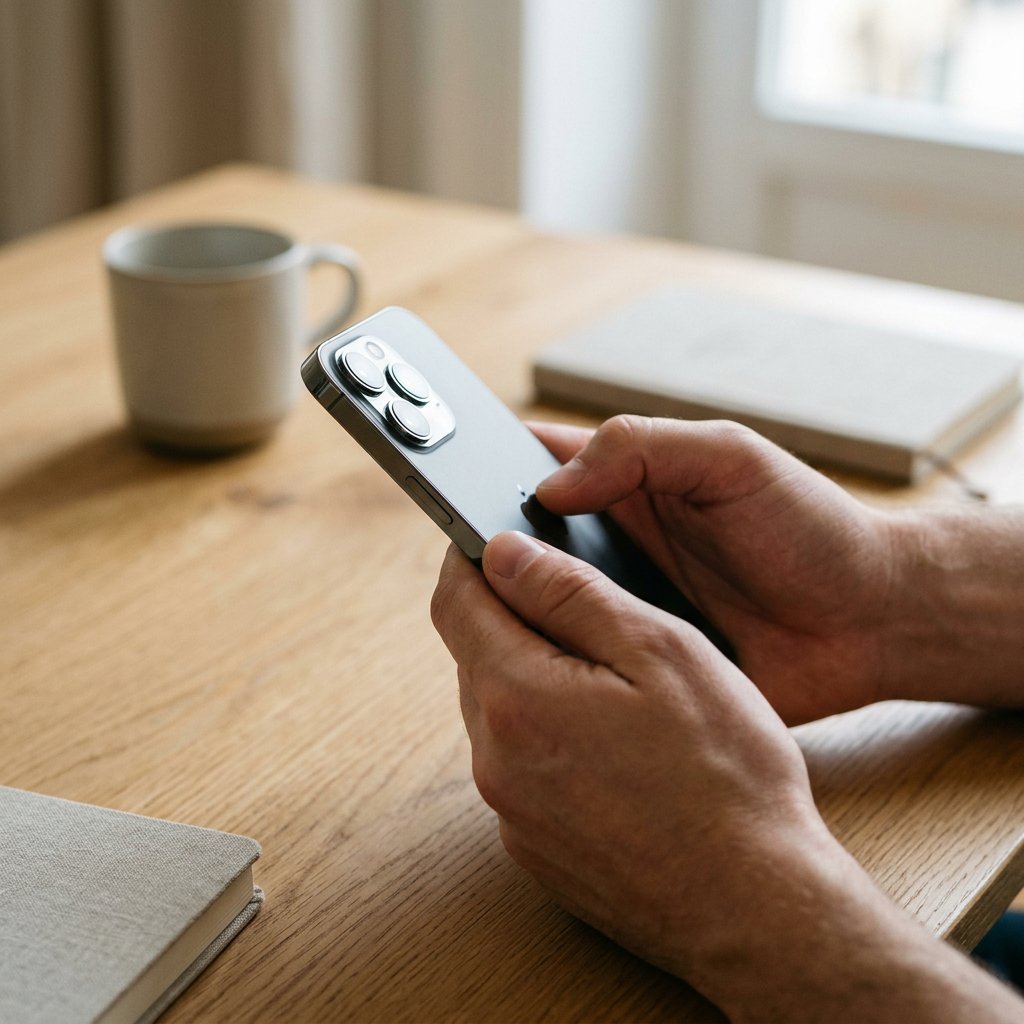
You want to know which iPhone you are using now, not which new model you should choose. Fortunately, that is usually quick to work out: in Settings you can often see the model name within a few taps. If you cannot access or start up your device, model codes and external features can still provide clarity.
The exact model matters for more than curiosity alone. For software updates, repairs and choosing suitable cases, screen protectors and MagSafe accessories, the precise iPhone model really does make a difference. Below you will see the quickest route, followed by the most reliable alternatives. If you are unsure about magnetic standards and accessories, also read: What is MagSafe?.
Find your iPhone model directly in Settings
Open Settings > General > About
First look at Model Name. There you will usually see something straight away, such as iPhone 13 or iPhone SE (3rd generation).
Then check the number under the device details. Depending on your iOS version, you will first see either a part number or the model code straight away.
Tap the number if you do not yet see a code in the format Axxxx. With that extra tap, the technical model number will often appear, allowing you to confirm your device even more precisely.
Ideally, note down both the model name and the A-code. That combination is the most useful if you are looking for accessories or want to check which part or repair fits your iPhone.
For most users, this is the quickest way to see straight away what iPhone you have, without having to compare the device visually with other models. If you would like an extra clue when in doubt, also see Which phones support wireless charging?.
Model confirmed? Browse iPhone cases and accessories. If your iPhone supports MagSafe, you will find suitable cases under MagSafe cases for iPhone.
Identify your device by model number, part number and other codes
Many users mix up the various Apple codes. The model name is the clear name of the device, such as iPhone 12 or iPhone SE (2nd generation). The model number is the technical code in the format Axxxx. The part number is a sales or region code, and the serial number is unique to your specific device. To identify the exact iPhone model, the combination of model name and A-code is especially relevant.
For example, the code A1778 belongs to the iPhone 7. That is more reliable than going by appearance alone, because several generations can look very similar. If you cannot check in Settings, inspect the casing, the SIM tray or the original packaging. On older iPhones, the A-code is sometimes printed on the back of the device.
Never use a code you have found on its own as the final answer. Always match it to the official model name before choosing a case, part or repair. This helps you avoid confusion between models that may look almost the same in size, but still differ technically.
Check the design if you do not have access to Settings
| Identifying feature | What it usually indicates | What to look for |
|---|---|---|
| Home button present | Older iPhone generations or an iPhone SE | Several models share this design, so also check screen size and camera |
| No Home button, but a wide notch | Face ID generations from iPhone X to several later families | The notch alone is not enough to determine the exact model |
| Dynamic Island | A newer iPhone generation | Also check the camera layout and connector for a more precise match |
| One, two or three rear cameras | One camera often points to SE or older standard models, three cameras to Pro models | Two cameras appear across several generations and may be positioned differently |
| Edges and connector | Rounded edges are more common on older models; flat edges on newer families | Lightning and USB-C may seem unimportant, but they are very useful for distinguishing between generations |
With this visual comparison, you can usually place an iPhone in the right family quickly. Do bear in mind the strong similarities between generations: the camera module, edge shape, screen cut-out and the answer to the question USB-C or Lightning: which port does your iPhone use? together give a more reliable picture than one detail on its own.
Unsure which iPhone SE model you have?
| SE model | How to recognise it | Key check |
|---|---|---|
| iPhone SE (1st generation) | Compact 4-inch model in iPhone 5 style, with a straight-edged body, Home button and one rear camera | Immediately recognisable as the small SE model; clearly smaller than the later SE versions |
| iPhone SE (2nd generation) | 4.7-inch body in iPhone 8 style, Home button with Touch ID and one rear camera | Looks almost exactly like the 3rd generation; confirm via the model number if you are unsure |
| iPhone SE (3rd generation) | Externally almost identical to the 2020 SE: 4.7-inch size, Home button and one rear camera | Check 5G support or the model number to make sure it is the 3rd generation |
This is exactly where things often go wrong with the iPhone SE. The first generation stands out because of its compact design, but the 2020 and 2022 SE are almost identical on the outside. That is why, with those two models, checking via the A-code or 5G support is the safest route.
Do not confuse your iPhone model with your iOS version
Your iPhone model and your iOS version are not the same. The model is the device you are holding, such as iPhone 11 or iPhone SE (3rd generation). The iOS version is the software running on it. That is why people searching for what version of iPhone do I have sometimes actually mean the software version rather than the device itself.
You can check your iOS version via Settings > General > About. If you mainly want to know whether a newer update is ready, go to Settings > General > Software Update. That is the most useful place to see which version is currently installed and whether an update is available.
A recent iOS version does not automatically mean you also have a newer iPhone model. An older device can still run a modern iOS version. For Apple accessories, parts and model-specific information, the model name or A-code therefore always remains the deciding factor.